
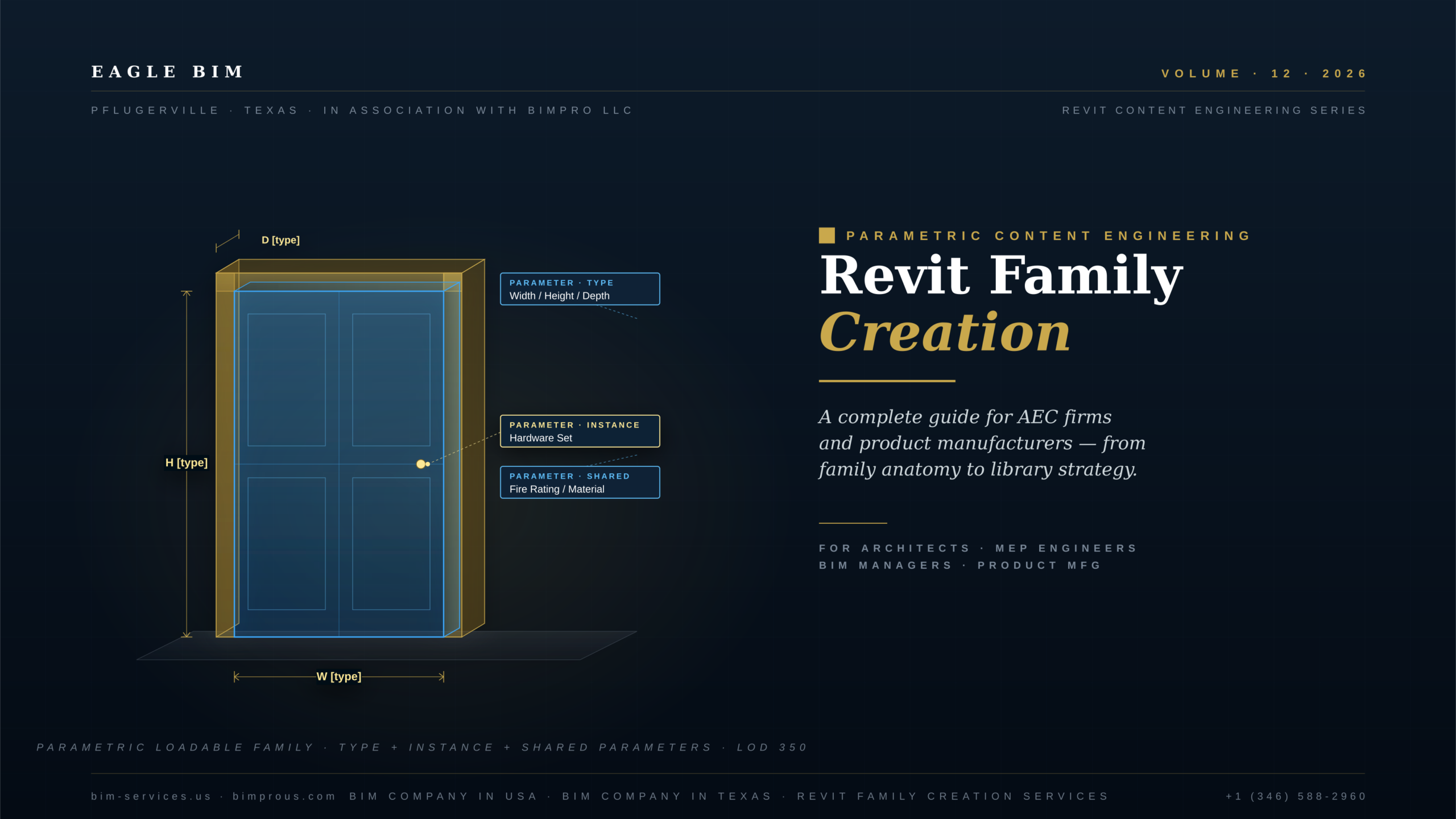
Most BIM problems come down to families. A federated model that runs slowly is usually a model carrying too many bloated families. A door schedule that reports wrong fire ratings is usually a door family with missing shared parameters. A coordination meeting where the architect’s window sill heights do not match the structural team’s opening locations is usually a window family without proper instance parameters. The smallest unit of BIM productivity is the Revit family. Revit family creation is therefore the discipline that determines whether a BIM project compresses or expands construction risk.
This guide covers what Revit family creation actually means in practice, the three family categories every Revit author works with, why bad families bloat project files and how to keep them lightweight, how parametric flex works through type and instance parameters, how shared parameters tie a Revit family library to firm-level BIM standards, why one well-built RFA can serve LOD 200 through LOD 400 in a single file, and what specifically to vet when commissioning outsourced Revit family creation work. Both AEC firms producing project documentation and product manufacturers publishing manufacturer Revit content benefit from the same Revit family creation fundamentals.
Two related Eagle BIM articles set the context: BIM Level of Development (LOD) explains the LOD progression that anchors family scaling, and What Is BIM Coordination explains the federated workflow that depends on clean family content.
What Is Revit Family Creation and Why It Matters
| Revit family creation is the practice of authoring parametric 3D BIM components stored as RFA files that flex through type, instance, and shared parameters. A well-built family loads into any Revit project, drives schedules through embedded data, and scales through LOD 200, 300, and 400 representations inside one file. Good Revit family creation compresses modeling time, keeps coordination data consistent, and prevents the family bloat that slows federated models. |
Every object in a Revit project comes from a family. Walls come from system families. Doors, windows, light fixtures, mechanical equipment, plumbing fixtures, structural framing, casework, and furniture come from loadable families. Custom one-off geometry that exists only in one specific project comes from in-place families. Without families, Revit cannot represent a building. With badly authored families, Revit struggles to represent a building efficiently. Revit family creation is the operating discipline that determines which side of that line a project falls on, and disciplined Revit family creation is the difference between a Revit practice that scales and one that grinds against its own content.
The economic case for serious investment in Revit family creation comes from compounding effects. A door family authored once correctly and reused across 40 projects pays back its authoring cost roughly 40 times. A door family authored badly and copied across 40 projects multiplies its problems 40 times: 40 broken schedules, 40 wrong fire ratings, 40 sets of clashes caused by inaccurate frame geometry. Custom Revit families built once at the firm level and maintained centrally compound positive return. Project-by-project one-offs compound negative return. This is why investment in disciplined Revit family creation at the practice level beats per-project authoring on every measurable dimension over the project portfolio lifetime.
This is why both AEC firms and product manufacturers commission dedicated Revit Family Creation Services. Firms need a Revit family library that enforces brand standards and accelerates project setup. Manufacturers need manufacturer Revit content so their products get specified in the model rather than substituted at the construction document phase. Eagle BIM authors families for both segments from our Pflugerville Texas operations, and ships content audited against firm-level naming conventions and clean-file performance benchmarks. As a BIM Company in Texas working in association with BIMPRO, we approach Revit family creation as both a craft discipline and a long-term content asset that pays back across the entire project portfolio.
System Families vs Loadable Families vs In-Place Families
| Revit recognizes three family categories. System families are built into the project template and live inside the RVT file: walls, floors, ceilings, roofs, ducts, pipes, and stairs are system families. Loadable families are external RFA files loaded into projects: doors, windows, fixtures, equipment, casework, and furniture are loadable. In-place families are project-specific custom geometry created inside one RVT and not portable to other projects. Default to loadable families for almost all custom Revit families. |
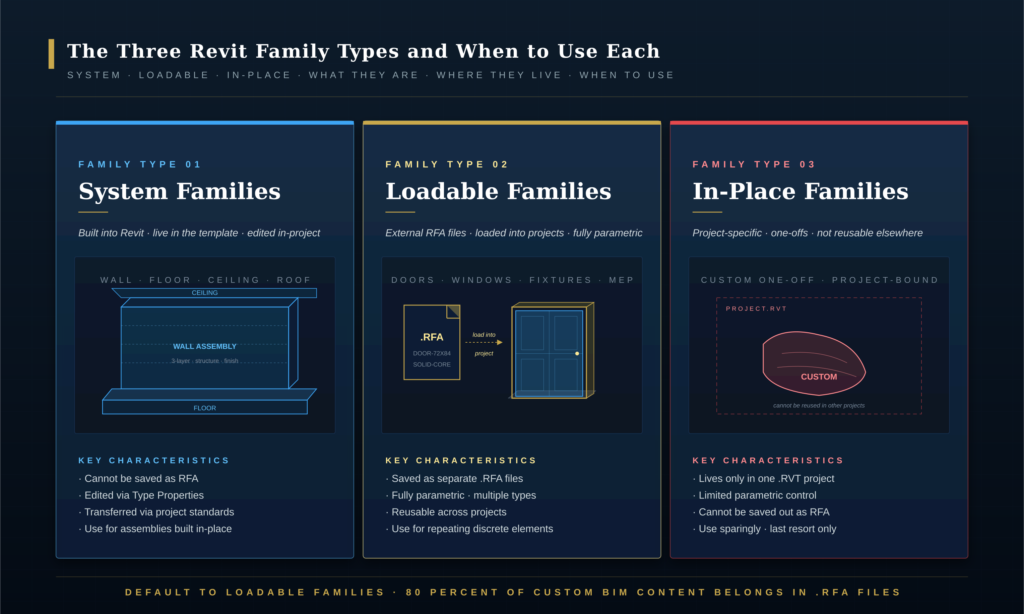
System Families · Walls, Floors, Ceilings, Roofs, Ducts, Pipes
System families are the elements Revit treats as part of the building’s structural and infrastructural fabric. A wall is a system family because Revit needs to host doors, windows, and other elements on it. A floor is a system family because Revit needs to calculate room boundaries from it. A duct is a system family because Revit needs to size it dynamically based on connection flow. System families cannot be saved out to a separate RFA file. They are edited through Type Properties inside the project. They transfer between projects via Transfer Project Standards rather than family loading. When you copy a project template to start a new job, you inherit all the system family types defined in that template.
The implication for Revit family creation practice is that system families belong in the template, not in the project. Firms with mature BIM standards invest heavily in template development because every system family type carried in the template becomes available across every project that starts from it. This is where BIM content creation at the system-family level happens: maintaining wall type catalogs, floor assembly libraries, ceiling type definitions, duct routing preferences, and pipe slope conventions inside controlled template files. Strong template-side Revit family creation at the system-family layer reduces per-project setup time by days and prevents the type-proliferation chaos that comes from defining new wall types ad-hoc inside live projects.
Loadable Families · The RFA Workhorse
Loadable families are where most Revit family creation effort goes. They live as separate RFA files outside the project, load into projects on demand, and carry full parametric capability through type and instance parameters. Doors, windows, plumbing fixtures, light fixtures, mechanical equipment, furniture, casework, signage, and specialty equipment are all loadable. A single RFA file typically contains multiple types. For example, a Door-Hinged-Single RFA might contain 30 by 80, 32 by 84, 36 by 84, 36 by 96, and double-leaf variants as separate types within the one file. Schedules pull type names and instance data from these loaded families into door, window, and fixture schedules. The loadable family is the primary deliverable of professional Revit family creation work, and the format both AEC firms and product manufacturers commission Revit Family Creation Services to produce.
The rule of thumb for custom Revit families is to default to loadable. If an element repeats across projects or even across rooms in a single project, it belongs in a loadable RFA. The benefit is portability. A loadable RFA authored once becomes a building block across the entire firm’s project portfolio. Loadable families are also what manufacturers publish as manufacturer Revit content, because the RFA format is the unit of exchange between manufacturer libraries and project authors. BIM object creation for manufacturer ecosystems is essentially loadable family authoring. Whether the work is firm-internal Revit family creation for a Revit family library or external Revit family creation for a manufacturer’s published BIM content, the loadable RFA is the unit of delivery.
In-Place Families · The Last Resort
In-place families are project-specific custom geometry. They exist only inside one RVT file and cannot be saved out to a separate RFA for reuse. They are appropriate only when the geometry is truly unique to that one project, such as a custom feature wall, a one-off sculptural element, or a unique architectural detail that will never appear in another project. They lose most of the parametric flex available to loadable families. They cannot be scheduled the same way. They cause performance issues when used at scale. In-place geometry is rarely the right answer for any element that might recur, which is why disciplined Revit family creation practice treats in-place authoring as a last resort rather than a routine option.
The most common Revit family creation mistake we see in audit engagements is in-place family proliferation. Teams reach for the in-place tool because it feels faster in the moment, then accumulate dozens of in-place families across a project that should have been loadable. The result is a project that cannot be cleaned, content that cannot be reused, and a model that bloats with non-portable geometry. The discipline is to model in-place only when the alternative is genuinely unworkable, and to convert proven in-place elements to loadable RFA files when they prove to be repeating patterns.
Why Bad Revit Families Bloat Project Files
| Bloated Revit families balloon project file size, slow Revit performance, and degrade clash detection accuracy. Common causes include over-modeled geometry beyond LOD requirements, embedded high-resolution images and rendering materials, deeply nested families, voids inside voids, and importation of CAD geometry that never gets cleaned up. A typical loadable family should sit under 1 MB. Families running 5 to 30 MB are a primary cause of slow federated models and the kind of BIM content creation failure that triggers second-opinion audits. |
File size is the symptom. The cause is usually one of five mistakes. First, geometry modeled beyond the LOD phase requires it. A door family does not need internal stile-and-rail joinery modeled at LOD 300 coordination phase. That detail belongs in the LOD 400 shop drawing extract, controlled by a visibility subcategory. Second, embedded high-resolution images. A family that includes a 4 MB photographic texture for rendering carries that 4 MB into every project it loads into. Third, nested families more than one level deep. A casework family that contains a hardware family that contains a fastener family creates a parametric dependency tree that Revit recomputes constantly. Fourth, voids inside voids. Subtracting a void from another void rather than from solid geometry generates incorrect topology and slows regeneration. Fifth, imported CAD geometry that was never cleaned up after the initial sketch phase. These five patterns account for the majority of bloated families encountered in audit engagements, and avoiding them is the foundation of disciplined Revit family creation at production scale.
The downstream cost of bloated families is enormous. A project carrying 200 to 400 placed instances of a 10 MB family ends up with hundreds of megabytes of redundant geometry weight inside the RVT. Federation slows. Synchronization to central runs long. Workshared coordination becomes painful. Detail visibility settings stop respecting the LOD progression because the underlying geometry is too heavy to filter. This is why disciplined Revit family creation matters more than most BIM managers realize. A clean Revit family library is the single biggest performance lever available to a Revit-based BIM practice.
Eagle BIM ships every family with a target file size budget. Most loadable families come in under 1 MB. Complex MEP equipment families come in under 5 MB. Anything heavier triggers an internal review before delivery. The audit checklist in section 10 of this guide includes the specific size thresholds we hold our own BIM content creation work to. Every Revit family creation engagement we ship passes that size-budget review before delivery, because a heavy family that loads into 40 projects across the firm carries that weight forty times over.
Lightweight Revit Family Creation Principles
| Five principles produce consistently lightweight Revit family creation work. Model only the geometry the highest required LOD demands. Use symbolic lines and masking regions for 2D representations rather than 3D geometry. Avoid voids inside voids. Keep nested families to one level maximum. Use visibility subcategories to scale a single family across LOD 200, 300, and 400 phases rather than building three separate families. |
Principle 1 · Model to the LOD, not beyond
If the project’s BIM Execution Plan calls for LOD 350 at the construction document phase, the family should carry geometry sufficient for LOD 350 and no more. Modeling at LOD 500 just because the family author had time produces bloat with no downstream benefit. The discipline is to read the BEP, identify the required LOD progression, and stop modeling at that ceiling. Higher LOD detail belongs in subcategories that turn on only when the higher LOD view is needed, never as default-on geometry. This single discipline, modeling to the LOD ceiling rather than past it, is the most consequential principle in lightweight Revit family creation and the one most often violated in inexperienced authoring work.
Principle 2 · Symbolic 2D over modeled 3D for plan and section representations
Revit allows symbolic lines, model lines, and masking regions inside families. A symbolic line is 2D, weighs almost nothing, and shows up exclusively in the views the family author designates. A modeled 3D extrusion intended only to read in plan view weighs more and slows regeneration. The principle is to use symbolic 2D for anything that exists only as a graphical representation rather than a physical object. Plan-view door swings, electrical symbols, plumbing fixture symbols, and equipment annotations all belong as symbolic 2D, not as modeled 3D. The decision to represent something symbolically rather than geometrically is a foundational Revit family creation judgment that, applied consistently across a library, can cut total file weight by half or more.
Principle 3 · No voids inside voids
Revit’s void cutting follows a specific topological rule: a void subtracts from solid geometry. When a void is placed inside another void, Revit’s geometry engine returns incorrect or unstable topology. The visual result may look acceptable in some views and broken in others. The performance result is always degraded. The correct pattern is to subtract all voids from solids only, never from other voids. If complex hollow geometry is needed, build the solid first, then apply voids individually to that solid. Avoiding void-inside-void topology is one of those small disciplines in Revit family creation that prevents difficult-to-diagnose downstream problems in views, regeneration, and rendering.
Principle 4 · Nested families capped at one level
Revit allows nesting families inside families. A door can contain a door hardware family. The principle is to keep nesting to a maximum of one level deep. A door containing hardware is fine. A door containing hardware containing fasteners is not. Two-level and three-level nesting creates parametric dependency chains that Revit must recompute on every type or instance change. The performance cost compounds with every nested level. Most custom Revit families should have zero nesting; one level when truly justified; never two. Production-quality Revit family creation caps nesting hard at this rule because the performance cost of deep nesting is the kind of hidden weight that surfaces only when projects start running slow at federation time.
Principle 5 · Visibility-driven LOD subcategories
The single most effective Revit family creation technique for keeping files lightweight is to use Revit’s subcategory system to drive LOD scaling. One RFA file can contain LOD 200 mass geometry, LOD 300 dimensional geometry, and LOD 400 fabrication detail as separate subcategories. View templates then control which subcategory shows on which sheet. The result is a single, manageable family that flexes across the full project lifecycle. Section 7 of this guide explains the subcategory pattern in detail.
| Need a lightweight Revit family library built right?
Eagle BIM authors parametric loadable families with file size budgets, LOD subcategory scaling, and full shared parameter integration · we audit free of charge before any engagement. |
Parametric Flex · Type Parameters vs Instance Parameters
| Type parameters are shared by every instance of a given type. When a Type parameter changes, every placed instance of that type updates simultaneously. Instance parameters are unique to each placed instance and vary across placements. Width and Height are typically Type parameters. Mark, Sill Height, and Hardware Set are typically Instance parameters. The guiding rule: if the parameter value does not vary across placements of the same type, make it a Type parameter; if it does, make it an Instance parameter. |
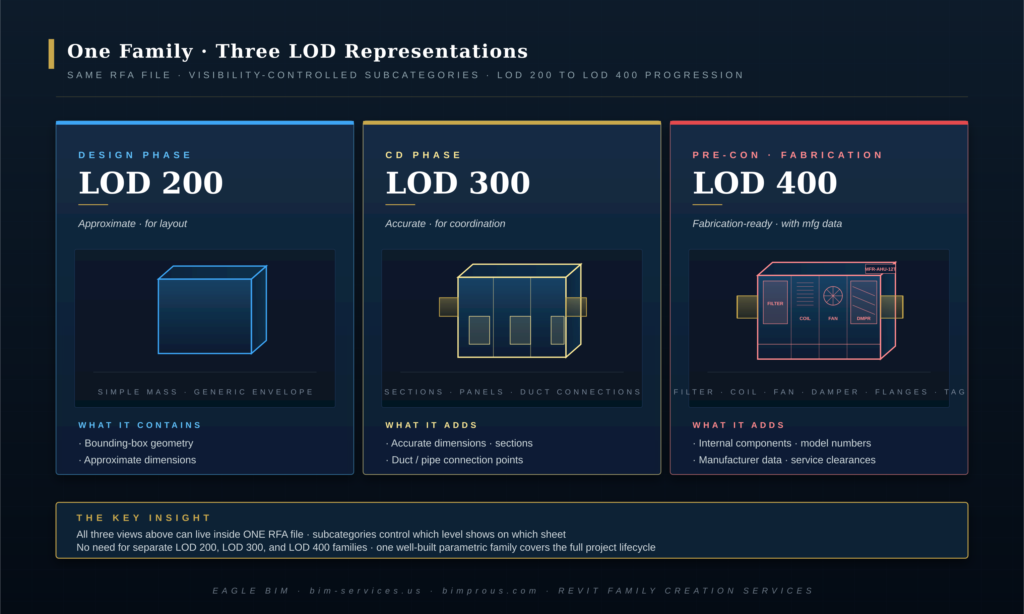
The Type versus Instance decision is the foundational parametric question every Revit family creation author makes. It determines how schedules group, how families flex, how multiple placements update, and how project teams interact with the family during design development. The decision is not arbitrary. Get it wrong, and every change to a single instance ripples through every placement of the type. Get it right, and one type definition cleanly serves dozens of contextual placements. This decision sits at the heart of professional Revit family creation, and it determines whether a family behaves as a coherent specification or as a brittle one-off.
Type parameters define what makes a type a type. A 36-by-84 solid-core fire-rated door is the type. Width 36 inches, Height 84 inches, Construction Type Solid Core, Frame Material Hollow Metal, and Fire Rating 90 minutes are all Type parameters. If a designer changes the Type’s Fire Rating from 90 to 60 minutes, every D-101, D-102, and D-103 instance throughout the project updates simultaneously. That synchronization is exactly the behavior wanted. The door type is a coherent specification; the specification changes in one place; the field updates everywhere. This is what disciplined Revit family creation delivers: synchronization through correctly classified parameters rather than through manual edits propagated by hand across every placement.
Instance parameters carry data that varies across placements of the same type. Mark D-101 versus Mark D-102 differs per instance. Sill Height varies if some doors are at finished floor level and others are raised over a threshold. Hardware Set varies if some doors carry an interior latch set and others carry an exterior lock set. Room Name, calculated from the host room the door faces, varies for every door. Comments vary per door if specific notes apply. These belong as Instance parameters because their values do not generalize across the type. Correct Instance-versus-Type classification is one of the trained judgments that distinguishes mature Revit family creation from junior work.
The guiding rule for parametric Revit families is the variability test. Ask: does this value vary across placements of the same type? If yes, Instance. If no, Type. If the question cannot be answered clearly, the parameter probably does not need to exist yet. Adding parameters speculatively bloats the family, slows the parameter dialog, and creates fields that schedules must accommodate without value. A disciplined family carries only the parameters the project actually needs, classified correctly. This is what separates production-quality custom Revit families from amateur work. Trained Revit family creation authors build to this discipline by default rather than as an afterthought during QA.
Shared Parameters and the BIM Standard Ecosystem
| Shared parameters are externally-defined parameters stored in a shared parameter TXT file, each carrying a globally unique identifier (GUID). They allow the same parameter to be used consistently across multiple families, projects, and schedules. A door’s Fire Rating defined as a shared parameter in one project will schedule correctly in any other project that references the same shared parameter file. Shared parameters are foundational to firm-level BIM standards and to participation in manufacturer Revit content ecosystems like BIMobject, Autodesk Seek, and brand-specific libraries. |
Without shared parameters, every family that adds a custom parameter creates a local-only parameter that other families and schedules cannot reference. Fire Rating on Door-A is not the same field as Fire Rating on Door-B if both are family-internal parameters. Schedules pulling Fire Rating data will treat them as separate fields. Reports break. Specifications cannot be cross-referenced. Family-internal-only parameters create exactly the kind of data fragmentation that mature Revit family creation programs are designed to prevent. The solution is the shared parameter file: a single text file maintained at the firm or project level that defines every parameter the firm uses, with each parameter carrying a GUID that uniquely identifies it across the entire Revit ecosystem. Shared-parameter discipline is what separates institutional Revit family creation from per-project family authoring.
The discipline of shared parameters is what allows a Revit family library to behave as a coherent system rather than a collection of unconnected RFA files. When all door families reference the same shared Fire Rating parameter, door schedules across all projects pull values consistently. When all mechanical equipment references the same shared Equipment Tag parameter, MEP coordinators can cross-schedule across projects. When all manufacturer families reference the same shared Manufacturer parameter, project specifications can filter by brand without redrafting. This system-level coherence is the structural payoff that mature Revit family creation programs deliver to firms over time.
Manufacturer Revit content ecosystems take shared parameters even further. Platforms like BIMobject publish manufacturer-specific shared parameter files that AEC firms can subscribe to. When a project uses a manufacturer’s RFA from such a library, all the data fields the manufacturer publishes flow into project schedules without manual mapping. This is the deepest expression of the system view of Revit family creation: a state where one author’s families, another firm’s standards, and a third party’s project schedules all communicate through a shared parameter vocabulary that no one had to negotiate from scratch. The same logic applies to firm-internal standards. A firm that publishes its shared parameter file to every project ensures that every family loaded into every project speaks the same data language. This is the layer where Revit family creation becomes a system rather than a craft, and where firm-level BIM service providers in usa deliver the most durable long-term value.
Eagle BIM ships every authored family bound to the client’s existing shared parameter file when one is provided, or with a base shared parameter file appropriate to the discipline when no firm standard exists yet. Our BIM consulting services include shared parameter file rationalization for firms whose existing files have grown chaotic through years of project-specific additions.
LOD Scaling Within a Single Family · LOD 200 to LOD 300 to LOD 400
| One well-built Revit family can carry LOD 200, LOD 300, and LOD 400 geometry in a single RFA file using visibility-controlled subcategories. View templates at the project level determine which LOD shows on which sheet. There is no need to maintain three separate families per element; one parametric file scales through the entire project lifecycle. This is the most important Revit family creation technique for keeping a Revit family library compact and maintainable. |
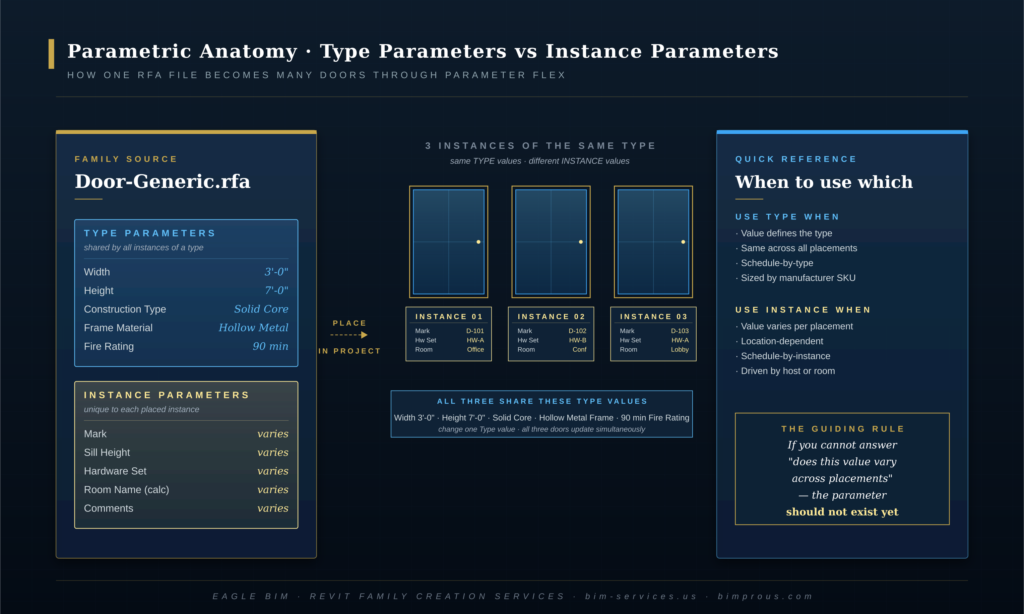
The subcategory pattern works because Revit’s visibility graphics overrides apply at the subcategory level inside a family. A mechanical equipment family can define three subcategories: Mass-LOD200, Geometry-LOD300, and Detail-LOD400. Each subcategory holds a different geometry tier. The LOD 200 mass envelope shows during early design coordination. The LOD 300 sections and panels show during construction document development. The LOD 400 filter, coil, fan, damper, and connection details show during shop drawing review and fabrication coordination. The same RFA serves all three phases through view-level subcategory visibility control. This pattern is the highest-leverage technique in modern Revit family creation because it folds three families into one without compromising any of the three LOD representations.
Implementing the pattern correctly requires three disciplines. First, name subcategories consistently across the firm’s Revit family library so view templates can target them. Eagle BIM uses LOD200, LOD300, LOD400 suffixes on subcategory names so view templates can filter cleanly. Second, model the LOD 300 and LOD 400 geometry in subcategories that are visibility-off by default. New projects then turn on only the LOD level appropriate to the current phase via view template override. Third, audit every family to confirm the subcategory toggle works: open the RFA, switch each subcategory on and off in the Family Visibility Settings, and confirm the geometry behaves correctly at each LOD tier. These three disciplines are non-negotiable for serious Revit family creation at the firm-library or manufacturer-content scale.
The alternative pattern, maintaining separate LOD 200, LOD 300, and LOD 400 RFA files per element, multiplies the library by three. It also creates synchronization problems: a dimensional change in the LOD 300 file does not automatically propagate to the LOD 400 file. A subcategory-driven single-file pattern keeps all geometry in one place, so a Type parameter change for Width updates the LOD 200, LOD 300, and LOD 400 representations simultaneously. This is the version of Revit family creation that scales across a firm-level library of hundreds of components. Eagle BIM teaches this pattern as the default expectation on every Revit family creation engagement we ship, whether the deliverable is a single MEP equipment family or a 200-family firm library.
Why Product Manufacturers Need Revit Family Creation Services
| Product manufacturers invest in Revit Family Creation Services because what gets modeled in the BIM during design gets specified in construction documents. A manufacturer whose products exist as production-quality RFA files in the major BIM content libraries gets selected during design more often than a manufacturer whose products require the architect or engineer to model from scratch. Without manufacturer Revit content, brands risk substitution at the spec stage. With it, brands ride the BIM workflow straight into installed product on site. For product manufacturers serving the AEC market, professional Revit family creation is the most direct mechanism for protecting brand specification share against substitution at the project authoring stage. |
The economics of manufacturer Revit content are unusually favorable. The cost of authoring a comprehensive Revit library covering a manufacturer’s product line is a one-time investment. The benefit is multi-year specification share: every architect, MEP engineer, or BIM coordinator who pulls the manufacturer’s RFA into a project is one specification decision biased toward that manufacturer’s product. Across thousands of projects, the cumulative effect is measurable in installed product volume. This is why HVAC manufacturers, plumbing manufacturers, lighting manufacturers, casework manufacturers, and specialty equipment manufacturers all increasingly fund dedicated BIM object creation programs. Investment in professional Revit family creation at the manufacturer level pays back not in single sales but in multi-year share of specifications across an entire industry vertical.
Production-quality manufacturer Revit content has specific requirements that distinguish it from generic AEC-firm Revit family creation. Each family must carry full manufacturer metadata: model numbers, performance specifications, dimensional accuracy traceable to engineering drawings, finish options, accessory parameters, and product datasheet references. Each family must scale through LOD 200, 300, and 400 in a single file so design teams can use the same RFA from schematic design through fabrication. Each family must integrate with the major shared parameter ecosystems so data flows into project schedules without remapping. Each family must perform under load: hundreds of placed instances must not bring a project to a crawl. These requirements raise the bar for Revit family creation work meant for published manufacturer content well beyond what passes for acceptable in unaudited firm-internal families.
Eagle BIM authors manufacturer Revit content for HVAC equipment, plumbing fixtures, lighting, and specialty equipment manufacturers serving the US market. Our deliverables include parametric LOD-scalable RFA files, shared parameter integration to the major platforms, branded type catalogs reflecting product line nomenclature, and ongoing maintenance as product lines evolve. We deliver as a BIM Company in USA with on-shore project management and engineering review, supported by a production team in our partner network. Manufacturers commissioning Revit family creation work in the US market gain native time-zone communication, native English content review, and a content delivery process built around the standards that AEC firms in the US actually use.
Why AEC Firms Need a Custom Revit Family Library
| Firm-level Revit family libraries accelerate project setup, enforce brand standards across project teams, reduce in-place family proliferation, and provide quality control at the office rather than the project level. A firm that maintains a curated library of authored custom Revit families ships projects faster, more consistently, and with fewer coordination errors than a firm that authors families per-project. |
The setup speed argument is the most concrete benefit. A typical mid-sized commercial project requires dozens of door types, dozens of window types, multiple casework configurations, plumbing fixture catalogs, lighting fixture catalogs, mechanical equipment, structural connection details, and signage elements. A firm with a maintained library loads these as RFAs from the central library at project kickoff. A firm without one re-authors them per project. The time difference is significant, and it falls in the most schedule-sensitive phase of a project: the first 30 days when the team is racing to establish a working federated model before design development begins in earnest. Firm-level Revit family creation converts that scramble into a routine load-and-go operation.
The brand standards argument is structural. Architectural firms develop signature material palettes, casework details, and signage standards over years of project work. A Revit family library codifies those standards as RFA assets that every project inherits. A door family in the library carries the firm’s preferred fire rating language, hardware schedules, and dimensional standards. A signage family carries the firm’s wayfinding system. A casework family carries the firm’s preferred hardware specifications. When every project starts with these assets pre-loaded, the firm’s design DNA propagates consistently rather than getting re-invented per project. This propagation effect is one of the most undervalued benefits of investing in Revit family creation as a firm-level discipline rather than a per-project task.
The quality control argument is operational. When Revit family creation happens per project, family quality varies by which junior staffer was assigned that day. When Revit family creation happens centrally at the firm library level, every family is reviewed against the firm’s authoring standards before it enters the library. The result is uniformly high-quality content across the entire project portfolio. This is why mature firms invest in BIM management roles that include library curation as a primary responsibility, and why firms without that capacity engage with specialist BIM service providers for library development and maintenance. Outsourced Revit family creation has matured into a recognized service category precisely because the library function rewards specialization and continuity that per-project authoring rarely sustains.
Eagle BIM provides Revit family library development as part of our broader Architectural BIM Services and MEP BIM Services. Engagements range from one-time library audits for firms with existing chaotic libraries through to full library construction from scratch for firms standardizing BIM practice. Every engagement applies the same Revit family creation disciplines documented in this guide.
How to Vet Outsourced Revit Family Creation Work
| Quality Revit family creation outsourcing follows a 12-point checklist. Verify file size is under 1 MB for typical loadable families and under 5 MB for complex equipment. Verify LOD scaling works through visibility subcategories. Verify shared parameters bind to the firm’s shared parameter file. Verify naming follows the firm’s convention. Verify the family loads cleanly into a fresh test project with no warnings. Verify manufacturer data accuracy where applicable. Verify schedules pull correctly. Verify materials parameterize through Type properties. Verify nested families cap at one level. Verify symbolic 2D is used appropriately. Verify the family flexes through its parameter range without breaking. Verify the family is hosted correctly. |
The 12-Point Family Audit Checklist
Item 1 · File size. Open the RFA file in Windows Explorer and check the file size. A residential or commercial door family should sit under 500 KB. A window family should sit under 1 MB. A mechanical equipment family should sit under 5 MB. Anything heavier is a flag. Files over 10 MB almost always carry embedded high-resolution imagery, unused CAD imports, or over-modeled geometry that needs to be removed before the family enters the library. File size is the single fastest indicator of Revit family creation quality at the outsourced-vendor stage.
Item 2 · LOD subcategory scaling. Open the family editor. Inspect the subcategory list under Object Styles. Confirm LOD 200, LOD 300, and LOD 400 subcategories exist (or the firm’s equivalent naming). Toggle each subcategory off in the Family Visibility Settings and confirm the family still displays appropriately at the remaining LOD tiers. A family that collapses to nothing when LOD 400 is turned off has its mass geometry incorrectly assigned to the LOD 400 subcategory. Correct subcategory assignment is a core Revit family creation deliverable, not an optional enhancement.
Item 3 · Shared parameter binding. Open the Family Types dialog and inspect every parameter. Each parameter that should be shared should show the shared-parameter icon. Open the shared parameter file the firm uses and confirm the GUIDs in the family match the GUIDs in the shared parameter file. Family-internal parameters that should have been shared are a common BIM content creation defect that breaks scheduling at the project level. Shared-parameter binding is one of the most-failed items in unaudited Revit family creation deliveries from low-cost vendors.
Item 4 · Naming convention. Confirm the family name follows the firm’s naming convention. Confirm the type names follow the firm’s type-naming convention. Confirm subcategory names follow the firm’s subcategory convention. Naming convention non-compliance is the most common reason outsourced families fail intake at the library curator stage. Any Revit family creation engagement with an external vendor should publish the firm’s naming standard upfront and require compliance as a deliverable acceptance criterion.
Item 5 · Clean-file load test. Start a new blank project from the firm’s standard template. Load the family. Place at least three instances. Synchronize. Confirm no warnings appear in the warnings dialog. Confirm Manage Links shows no broken references. Confirm the family does not introduce orphaned line styles, materials, or filled regions into the host project. A clean load with no warnings is the basic acceptance test. Production-grade Revit family creation passes this test on first load every time; cut-rate work shows its weaknesses precisely here.
Item 6 · Manufacturer data accuracy. For manufacturer Revit content, every published parameter must match the manufacturer’s product datasheet. Spot-check dimensions, model numbers, performance specifications, connection sizes, and finish options against the manufacturer’s published documentation. Inaccurate manufacturer data is the single fastest way to lose brand credibility with AEC firms downloading the content. Manufacturer-content Revit family creation is held to a higher data-accuracy bar than general firm-internal family work for exactly this reason.
Item 7 · Schedule extraction. Create a basic schedule of the family. Confirm every published Type parameter and Instance parameter pulls into the schedule with correct values. Confirm calculated fields evaluate correctly. A family whose data does not extract cleanly into schedules has parameter binding errors that need to be resolved before delivery. Schedule extraction is a non-skippable test in any Revit family creation acceptance workflow.
Item 8 · Material parameterization. Inspect the family’s materials. Confirm material assignments come through Type parameters rather than hard-coded geometry assignments. This allows the firm to swap materials at the type level without editing the family in the family editor. Material parameter binding is a frequent gap in cut-rate Revit family creation work. Production-grade Revit family creation binds every visible material to a Type parameter so the firm can swap finishes at the type level without opening the family editor.
Item 9 · Nested family depth. Use the Family Types dialog or the Project Browser within the family to inspect any nested families. Confirm nesting never exceeds one level. A door containing hardware is acceptable. A door containing hardware containing fasteners is not. Two-level nesting causes the parametric performance cascade described in section 3. Nesting depth is a non-negotiable acceptance criterion in any Revit family creation engagement that ships into a production library.
Item 10 · Symbolic versus modeled 2D. Inspect the family in plan view and section view. Geometry that only needs to read in plan should be drawn with symbolic lines, not 3D extrusions. Door swings are the canonical example. A door family whose plan swing is a 3D extrusion is wasting model weight on a representation that could be symbolic 2D. Symbolic-versus-modeled discipline is one of the cheapest weight savings in Revit family creation and one of the most consistently overlooked.
Item 11 · Parameter flex test. Open the Family Types dialog. Flex every parameter through its expected value range. Width through every size. Height through every height. Construction Type through every option. Confirm the geometry rebuilds cleanly at every value without errors. A family that flexes correctly at the authored type values but breaks at intermediate values is fragile. Flex testing is the single highest-value QA step in Revit family creation acceptance work because parameter breakage at non-authored values surfaces only late in projects when the cost to fix is highest.
Item 12 · Host correctness. Confirm the family is hosted by the appropriate Revit category. A door must be wall-hosted. A window must be wall-hosted. A ceiling fixture must be ceiling-hosted. A face-based family that should have been wall-hosted will not behave correctly when the host wall moves. Host correctness is a foundational Revit family creation decision that gets caught at intake or not at all. Once a wrongly-hosted family enters the library, every project that loads it inherits the host defect by default.
How Eagle BIM Approaches Revit Family Creation
Our Revit family creation engagements follow a standard workflow regardless of whether the client is an AEC firm building out a Revit family library or a product manufacturer commissioning manufacturer Revit content. Discovery confirms required LOD ceiling, shared parameter file, naming convention, and target file size budgets. Authoring proceeds family by family with internal review at LOD 200, LOD 300, and LOD 400 milestones. QA runs the 12-point checklist against every family before delivery. Handover includes both the RFA files and a library catalog document that lists every family, every type, and every published parameter. Every Eagle BIM Revit family creation engagement closes with this catalog so the client’s BIM manager can audit the library against the brief without opening every RFA individually.
Engagement scoping is free. We audit existing libraries, identify gaps and quality issues, and propose either targeted remediation or full library rebuild as the data warrants. Reach out via Eagle BIM’s contact page, and we will respond within one business day with next steps. Whether the brief is one-off Revit family creation for a single complex MEP equipment family or a full multi-discipline firm-library build, the engagement workflow stays consistent.
| Ready to build or audit your Revit family library?
Eagle BIM authors production-quality parametric Revit families for AEC firms and manufacturers · LOD-scalable · shared-parameter compliant · audited against our 12-point quality checklist before delivery. → Get started with Eagle BIM’s Revit Family Creation Services |
Frequently Asked Questions
What is Revit family creation in simple terms?
Revit family creation is the practice of building reusable parametric 3D building components stored as RFA files that load into Revit projects. Each family represents a category of building element such as a door, window, light fixture, or mechanical unit, and flexes through type and instance parameters to serve multiple variants. Production-quality Revit family creation services produce families that scale through LOD 200 to LOD 400 inside a single file, bind to the firm’s shared parameters, and stay under tight file size budgets so they perform at scale. Done well, Revit family creation is the unit of leverage that determines whether a Revit-based BIM practice runs efficiently or fights its own content.
What is the difference between system, loadable, and in-place families?
System families are built into the Revit project template and include walls, floors, ceilings, roofs, ducts, pipes, and stairs. They cannot be saved as separate RFA files. Loadable families are external RFA files that load into projects on demand and include doors, windows, fixtures, equipment, and casework. They are the primary unit of custom Revit families work. In-place families are project-specific custom geometry that cannot be reused in other projects. Most custom content should be authored as loadable families. The system-versus-loadable-versus-in-place decision is the first Revit family creation choice every family author makes, and getting it right at the start prevents downstream library cleanup work later.
How large should a typical Revit family file be?
A well-authored loadable family should sit well under 1 MB for typical components like doors and windows. Complex mechanical equipment families with internal detail can run up to 5 MB. Anything over 10 MB indicates likely Revit family creation defects such as over-modeled geometry, embedded high-resolution images, deep nesting, or imported CAD that was never cleaned up. A Revit family library full of oversized families is a primary cause of slow federated models on large projects. File size is therefore the first metric any Revit family creation audit should measure.
What are shared parameters and why do they matter?
Shared parameters are externally-defined parameters stored in a shared parameter TXT file, each carrying a globally unique identifier (GUID). They allow the same parameter to behave consistently across multiple families, projects, and schedules. Without shared parameters, every family’s custom parameters are isolated and cannot be scheduled or reported across families. With shared parameters, a firm-level Revit family library behaves as a coherent data system rather than a collection of disconnected RFA files. This is one of the highest-leverage decisions in any Revit family creation program.
Can one Revit family cover LOD 200, LOD 300, and LOD 400?
Yes. A single well-built RFA file can carry LOD 200, LOD 300, and LOD 400 geometry through visibility-controlled subcategories. View templates at the project level then control which LOD level shows on which sheet. This is the most important Revit family creation technique for keeping a Revit family library compact and maintainable. Maintaining separate LOD-specific RFA files per element multiplies the library by three and creates synchronization problems. Modern Revit family creation treats single-file LOD scaling as the default rather than the exception.
Why would a product manufacturer invest in Revit family creation?
Product manufacturers invest in Revit Family Creation Services because what gets modeled in BIM during design gets specified in construction documents. A manufacturer whose product line exists as production-quality manufacturer Revit content in the major BIM libraries gets specified more often than a manufacturer who requires the architect or engineer to model from scratch. The cumulative effect across thousands of projects is measurable in installed product volume, which is why HVAC, plumbing, lighting, and specialty equipment manufacturers increasingly fund dedicated BIM object creation programs. Outsourced Revit family creation to a specialist content authoring partner is the standard path most manufacturers take rather than building authoring capacity in-house.
What should I look for when outsourcing Revit family creation?
Vet outsourced Revit family creation work against a 12-point checklist: file size under 1 MB for typical loadable families, LOD subcategory scaling, shared parameter binding to your firm’s shared parameter file, naming convention compliance, clean load into a fresh test project with no warnings, accurate manufacturer data where applicable, correct schedule extraction, materials parameterized through Type properties, nested families capped at one level, symbolic 2D used appropriately, parameters flex cleanly through their range, and correct host category. Section 10 of this guide details each item. Running every outsourced delivery against this 12-point Revit family creation audit at intake catches the majority of authoring defects before they enter the firm library and propagate across projects.
Does Eagle BIM serve both AEC firms and product manufacturers?
Yes. Eagle BIM authors Revit family creation work for both segments from our Pflugerville Texas operations. AEC firm engagements typically focus on building or auditing the firm’s Revit family library to enforce brand standards and accelerate project setup. Manufacturer engagements focus on producing manufacturer Revit content that publishes to BIMobject, Autodesk, and brand-specific platforms. The Revit family creation fundamentals are the same for both, but the deliverable wrappers differ. Eagle BIM operates as a BIM Company in Texas and serves clients across the USA. Both AEC firms and manufacturers benefit from the same disciplined approach to Revit family creation, scaled to the relevant deliverable.